Articles · AI Design
Animated backgrounds freeze when you export to PNG. Figma shaders now export up to 4096px and carry over to code layers
What Figma's November 2 release note and two help articles confirm about shaders going generally available, 4096px export and code layers, where the two documents disagree on browser requirements, and what changes after November 4.
Translated from the Korean original. Read in Korean
You send a mock with an animated gradient behind a card, and the reply says, "If I get a PNG, it won't move, right?" (An imagined scene, not something that happened to me.) The effect runs inside your file, turns into one still picture on export, and the developer is left with the question of how to build it.
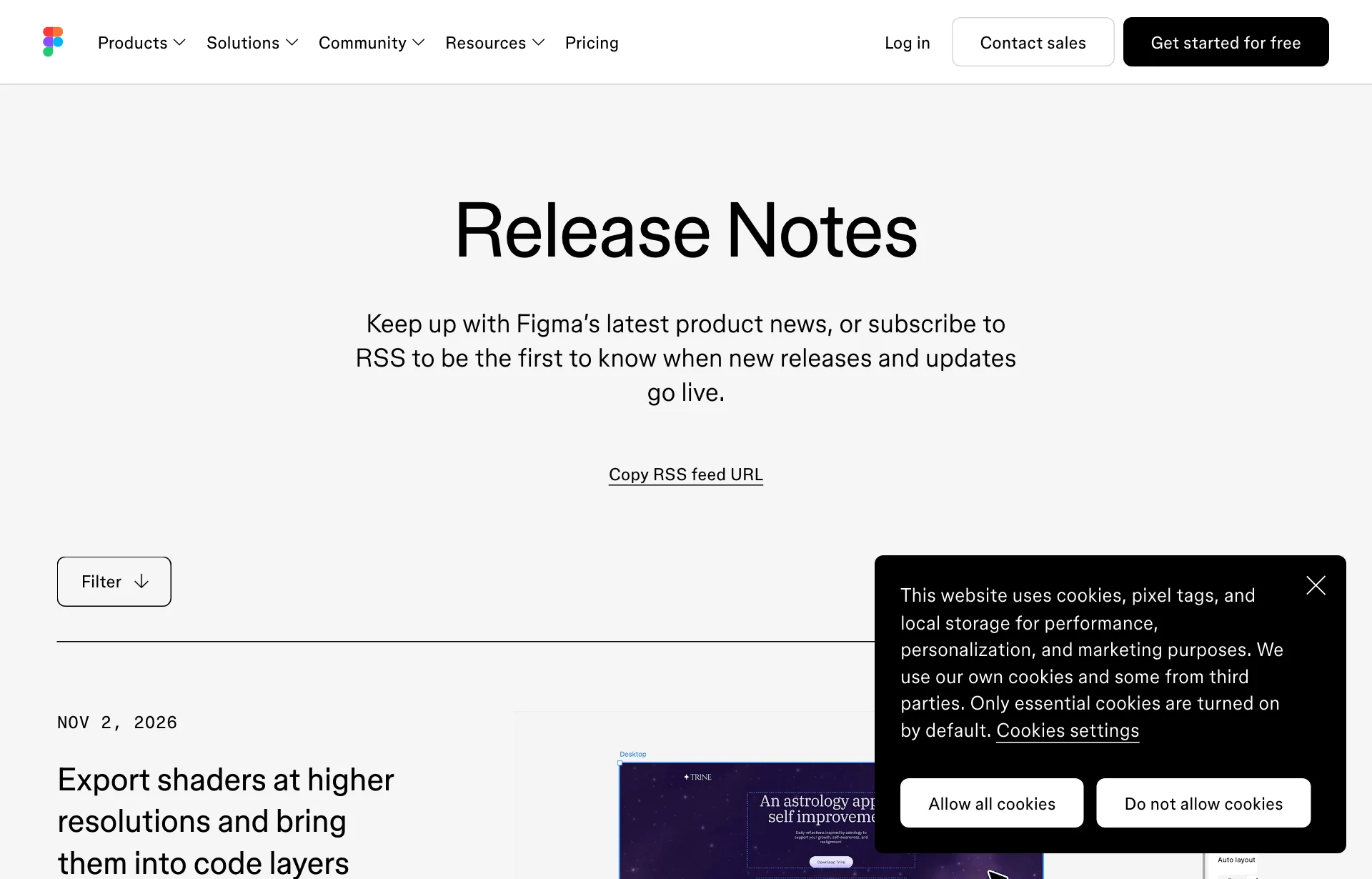
Figma's November 2 release note has an item that sits between those two points: "Export shaders at higher resolutions and bring them into code layers." A shader is an effect that adds texture or motion to a layer. This is not a hands-on review. I only wrote down what I could confirm in the release note, the shaders help article and the code layers help article. I could not find a permalink for the individual note, so the source link goes to the release notes list. I did not try a 4096px export in my own account.
Five lines from the note
The note is short. Summarized:
| Item | What the note says |
|---|---|
| Status | Shaders are generally available to all users |
| Export size | Render and export up to 4096px |
| Code layers | Shaders come along when you use "build this with code" |
| Browser | The code layer path works in the browser only, on Chrome 157, rolling out that week |
| Playback | Set the layer to Play with the control at its top right to see the shader render |
Source: Figma release notes, Nov 2, 2026 entry (checked 2026-11-03). The table summarizes the note's sentences.
What a shader is
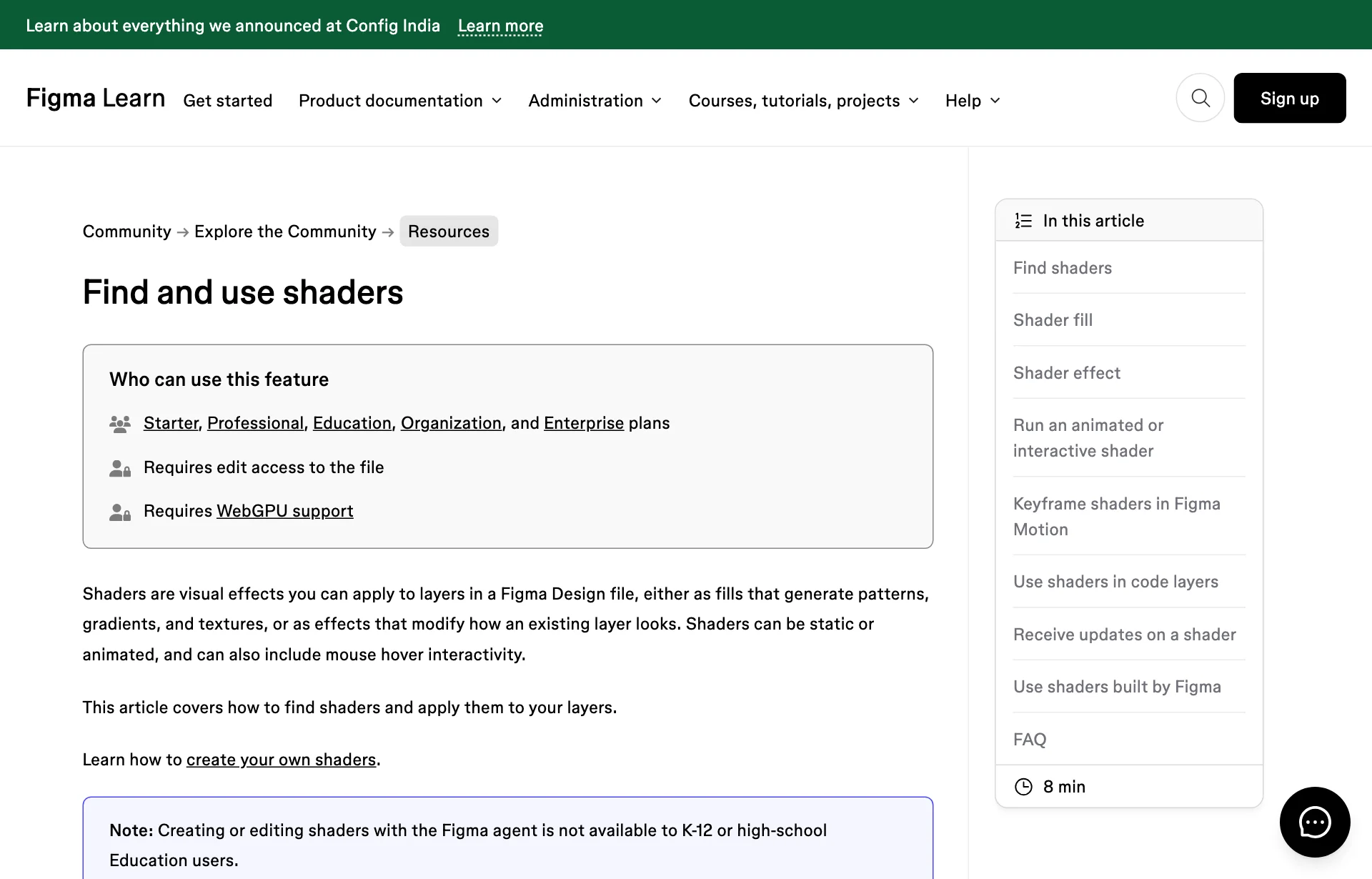
Per the help article, a shader is a visual effect applied to a layer. Shader fills generate patterns, gradients, noise or textures. Shader effects change how an existing layer looks: color shifts, distortion, grain, halftones, blurs. Some are static, some animated, and some react to the mouse.
They go in the Fill or Stroke sections, or in Effects, and stack with other fills and effects. Any combination can be saved as a style and published to a team library.
The requirements: Starter, Professional, Education, Organization or Enterprise plans, plus edit access to the file. Using a shader costs no AI credits. Building or editing one with the Figma agent does. Shaders need WebGPU support, and not in compatibility mode.
What 4096px gets you
The note's resolution sentence is one line: shaders can be rendered and exported at up to 4096px to keep their detail.
Fine-grained shaders such as film grain or halftone turn mushy at small sizes. You notice it first on large backgrounds or print mocks. Whether 4096px refers to the long side or the width, and which file format comes out, I could not confirm. The help article gives no export formats or size limits either.
Nor does the note say what you get when you export an animated shader. The opening question, whether a PNG will move, is not answered. The code layer route looks like the one aimed at showing motion.
Where to click when sending a shader to a code layer
A code layer is a prototype backed by running code that sits on the canvas. The help article calls it an open beta, rolling out gradually. We covered how to make one in the code layers open beta post.
The note gives three steps.
- Put the shader in your design.
- Use "build this with code." Per the help article, that means selecting frames, choosing Code in the toolbar and clicking Build selection.
- If the shader does not move in the code layer, click Play at the layer's top right.
Step three matters. The shaders help article says the same: an animated shader runs when you press Play, and only one animated or interactive shader can run per page at a time. A mock with several animated backgrounds has to be played one by one. Whether that one-at-a-time limit also applies inside a code layer, I could not confirm.
The browser requirement differs between two documents
The note says this flow works in the browser only, on Chrome 157, rolling out that week. The code layers help article says something different: Chrome with the HTML-in-Canvas flag (chrome://flags/#canvas-draw-element), and no support in the Figma desktop app or other Chromium browsers.
The documents do not say whether these are the same condition at different times, or whether Chrome 157 removes the need for the flag. To check your Chrome version, type chrome://version in the address bar.
What ends on November 4
Per the code layers help article, creating and editing code in a code layer is free on paid plans through November 4. Other agent work in the same prompt still uses AI credits. After that, code layer tasks use AI credits like other agentic features, and the amount varies with the task.
Importing a project through the MCP server (the link between Figma and AI coding tools) uses no credits, but later Make agent edits do. That import needs a Full seat, can take 10 minutes or more, and some projects need changes to run.
On how credits get spent, see our Weave models post.
What is still unknown
- What 4096px measures. Long side, width or square is not stated.
- Export format and file size. Nothing in the documents.
- What an animated shader exports as. Not stated.
- How general the availability is. The English shaders help article has no beta label. A search snippet suggested another-language help page still said open beta; I did not open it.
- The Chrome condition. The two documents differ, as above.
So, for now
Pick one shader and export it once. Take a fine-grained one, export at 4096px and look at 100% zoom. Export the same one small and compare. File size you have to check yourself.
If you want the free period, use it on one file before November 4. Run Build selection on a single frame with a shader. If nothing moves, press Play first, then check the Chrome version and flag. Credits only start counting afterward, so one file gives you a rough feel.
One moving background per page. Since only one runs at a time, keep one animated shader per mock and make the rest static. If you miss an earlier look while tweaking, there is version history.
Sources: Figma release notes, Shaders in Figma Design (help), Code layers in Figma Design (help)